# Variant Specific Addons
You can now display **different addons** based on the selection of different master product variants.
**Example:**\
If you sell shirts in different colors, you can configure unique add-on combinations (like matching pants, caps, or accessories) for each shirt color. Customers can then add these outfits to their cart together.
⚠️ **Important:** This functionality works **only** when the **Group Add-ons** feature is enabled in the Product Addons option.
***
For configuration, please check the step-by-step guide for reference.
### Step 1: Enable Group Add-ons
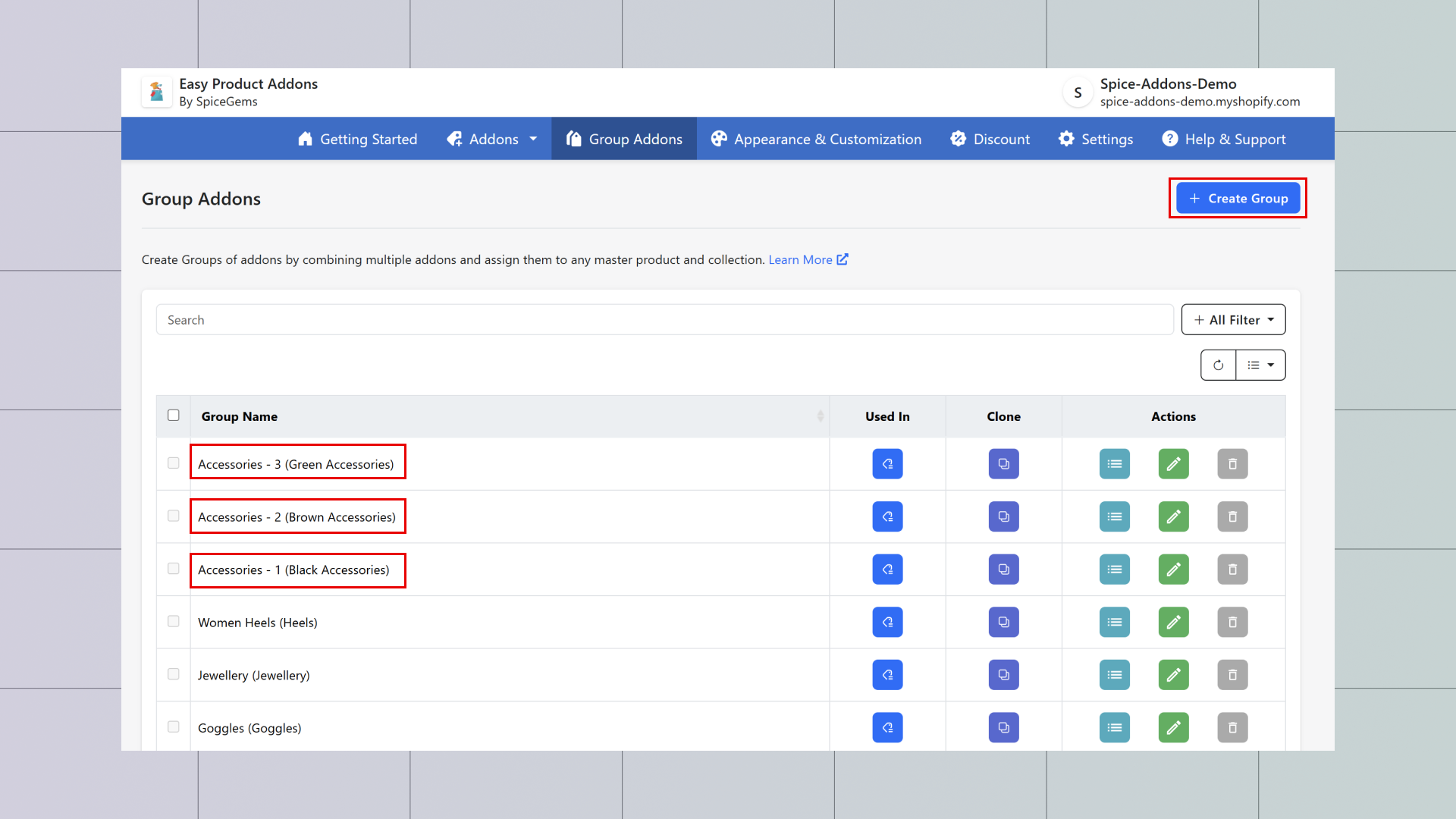
To use this feature, you first need to create **Group Add-ons** (add-ons displayed in categories).
* [Check this guide on how to create Group Addons](https://help.spicegems.com/new-easy-product-addons/group-addons/create-group-addons)
### Step 2: Associate Group Add-ons with a Product
Next, associate the created **Group Add-ons** with the main product.
* Example: We associated **Group Add-ons** with the product *T-Shirt – Colors*.
* [Check this guide on how to associate the Group Addon](https://help.spicegems.com/new-easy-product-addons/group-addons/associate-group-addons)
{% embed url="" %}
### Step 3: Create Display Rules
Once Group Add-ons are associated with the product, you’ll see the option to **Create Display Rules**.
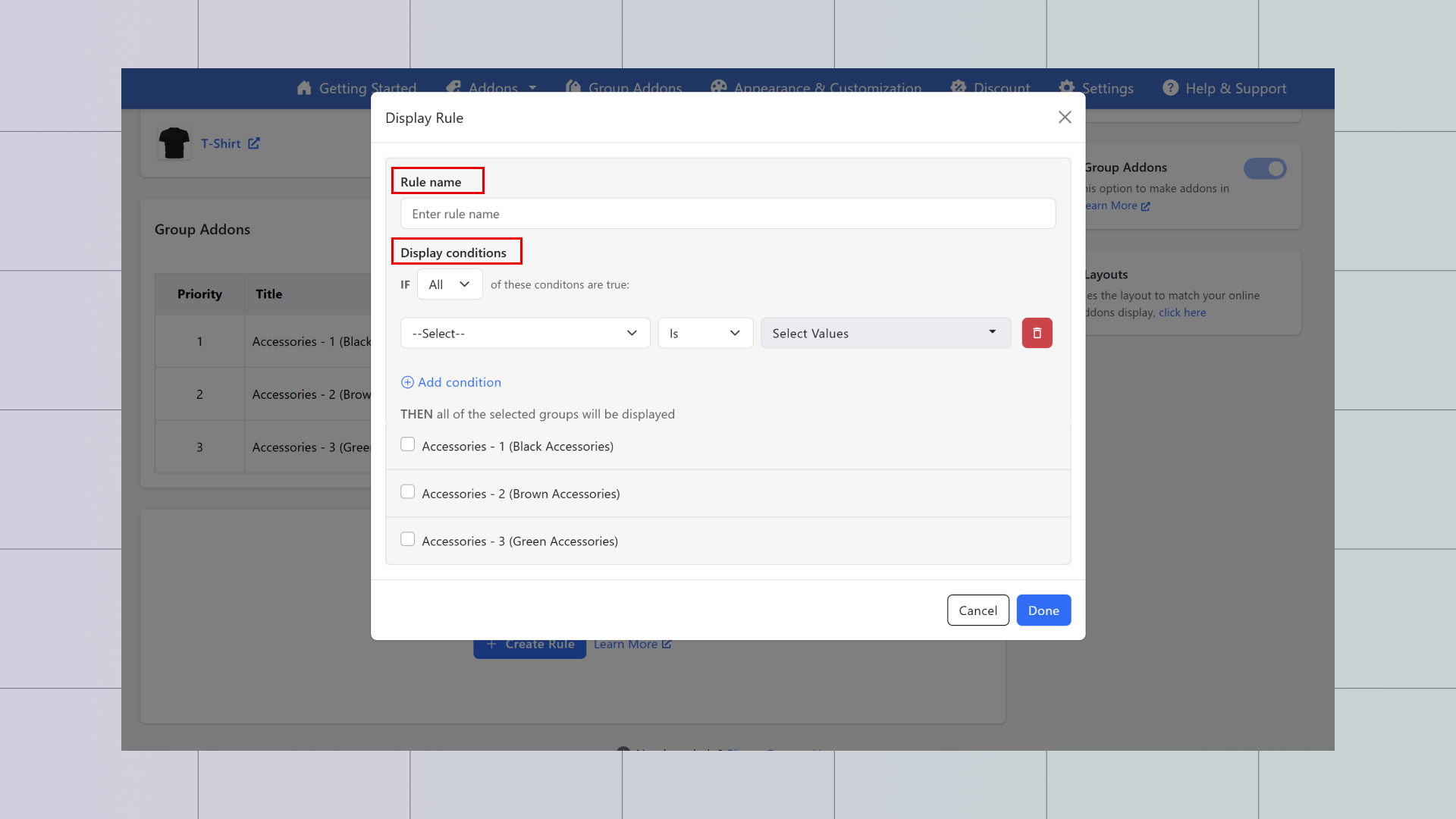
* Click **+ Create Rule** → A popup will appear.
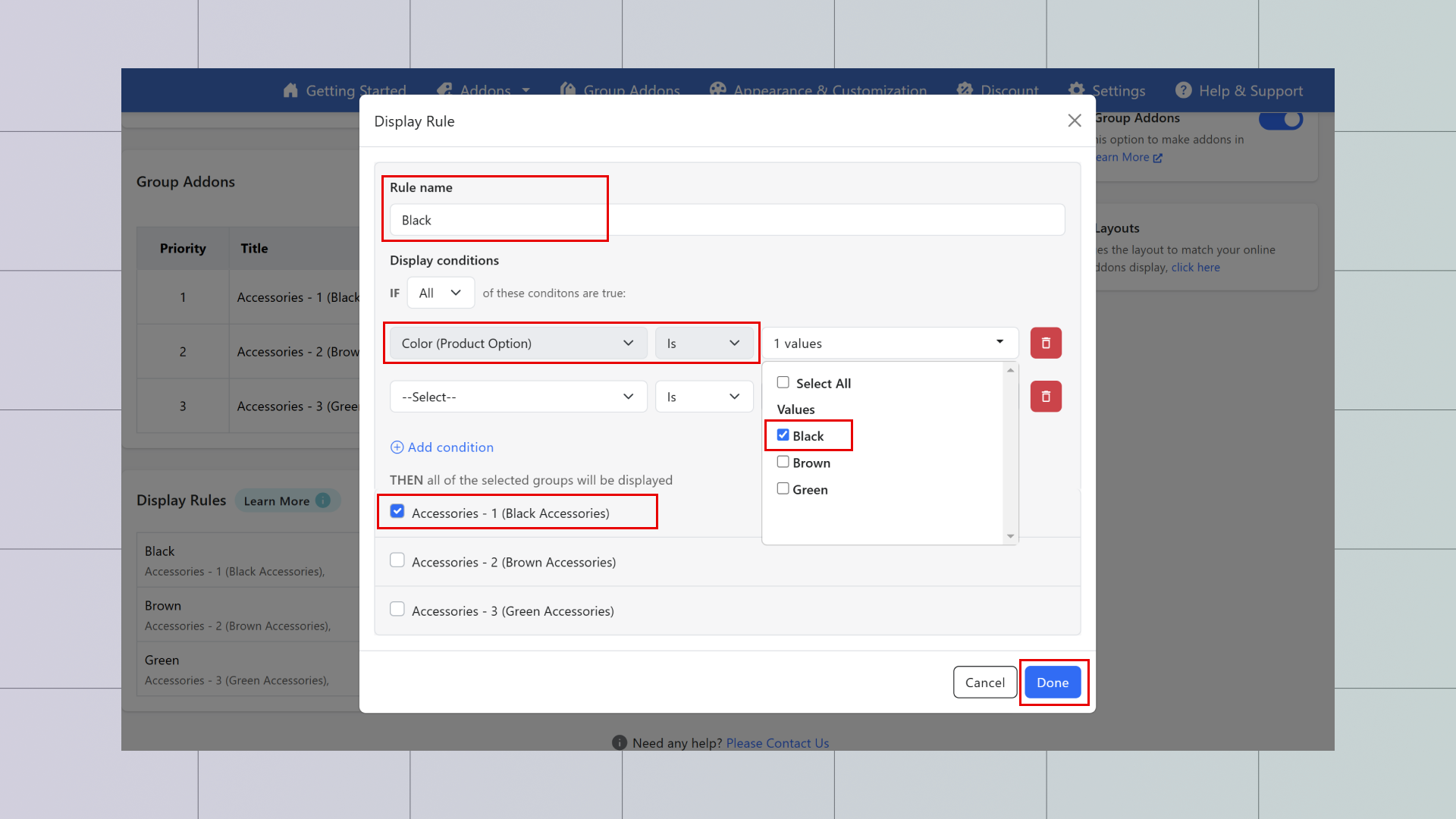
1. Enter a **Rule Name** (any name of your choice).
2. Select a **Display Condition** (you will see master product options such as color, fabric, etc.).
* Example: Select **Color**.
3. Choose a **Value** (a specific variant of the product, e.g., *Red*).
4. Select the **required add-on group** for that variant.
5. Click **Done** to save the rule.
### Step 4: Finalize Configuration
* The configuration is now complete in the app.
* Variant-specific add-ons will display based on the product variant selected.
***
### Resources
* Live demo: [**https://spice-addons-demo.myshopify.com/products/t-shirt**](https://spice-addons-demo.myshopify.com/products/t-shirt)
* **Video Guide:** Detailed instructions on configuring variant-specific add-ons.
{% embed url="" %}