> For the complete documentation index, see [llms.txt](https://help.spicegems.com/llms.txt). Markdown versions of documentation pages are available by appending `.md` to page URLs; this page is available as [Markdown](https://help.spicegems.com/epa-easy-product-addons/addons-creation/import-and-export-addon-products.md).
# Import - Export Addons
This feature is developed to back up your data or create new addons with new main products in the app.
With the new addons Import/Export feature, you can now import and export all the addons associated with their master product data in a **CSV file** format.
### 1. Export Add-ons
* Go to **App Dashboard** → **Add-ons** → **View Product Add-ons** and click the **Export** button.
The export file will be sent to your email registered in the Shopify store. If you want to send the exported file to a different e-mail address, you can update the email address.
## 2. Import Add-ons
You can import a previously exported "**CSV**" file, also you can create a new "**CSV**" to import add-ons in the app.
### 1. Import "CSV" file
### 2. Create "CSV" file
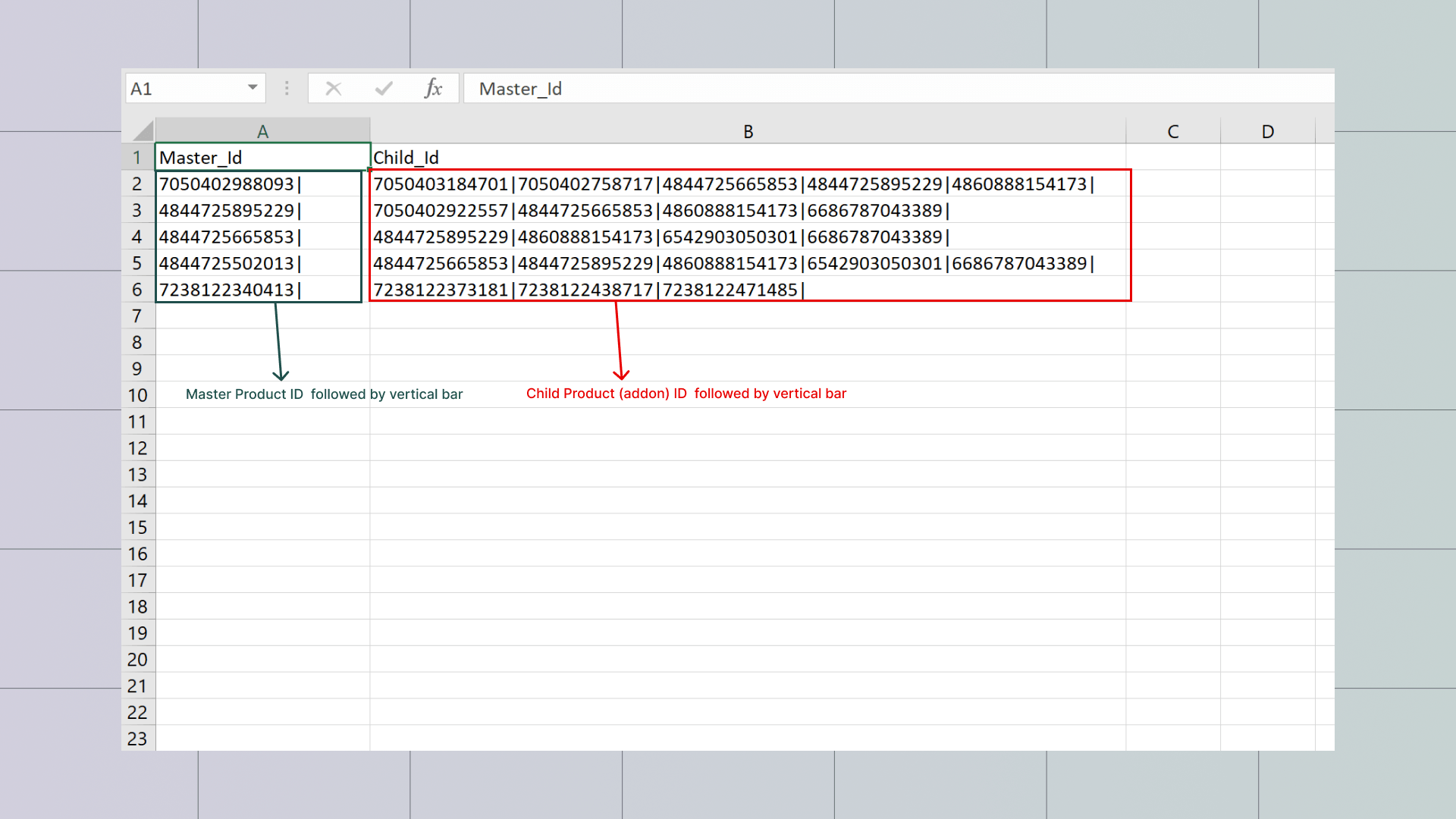
You need to follow a required format for the CSV file creation and the data will be picked by the app.
Here’s a snapshot of the required CSV file.
The CSV file to import addons should contain 2 columns **Master \_Id and Child\_Id.**
* **Master ID** is the product ID of your Shopify product followed by a **vertical bar |**
* **Child ID** is the product ID of the Shopify products you want to attach as add-ons. Each product id is to be separated using a **vertical bar |**
{% hint style="info" %}
* Only one master id is accepted in one cell.
* You can add as many child ids as required separated by a vertical bar.
{% endhint %}
#### **What is product ID and how to get it?**
In your Shopify Admin, go to **Products** and choose the product you want
The **product\_id** is the **number string** at the **end of the URL**
{% hint style="info" %}
If you face any difficulty please contact us at [**help@spicegems.com**](mailto:help@spicegems.com)
{% endhint %}